
What can you do with Niko Home Control?
By using Niko Home Control with your Renson system, you can do the following:
|
|
Renson multi-zone ventilation |
|
|---|---|---|
|
Flux+ |
Healthbox 3.0 |
|
|
Control the ventilation speed |
✔️ |
✔️ |
|
Choose the ventilation program mode (e.g. auto, manual) |
✔️ |
✔️ |
|
Boost the ventilation |
✔️ |
✔️ |
|
Check the relative humidity level |
✔️ |
|
|
Check the air quality level |
✔️ |
|
|
Check the ventilation filter status |
✔️ |
|
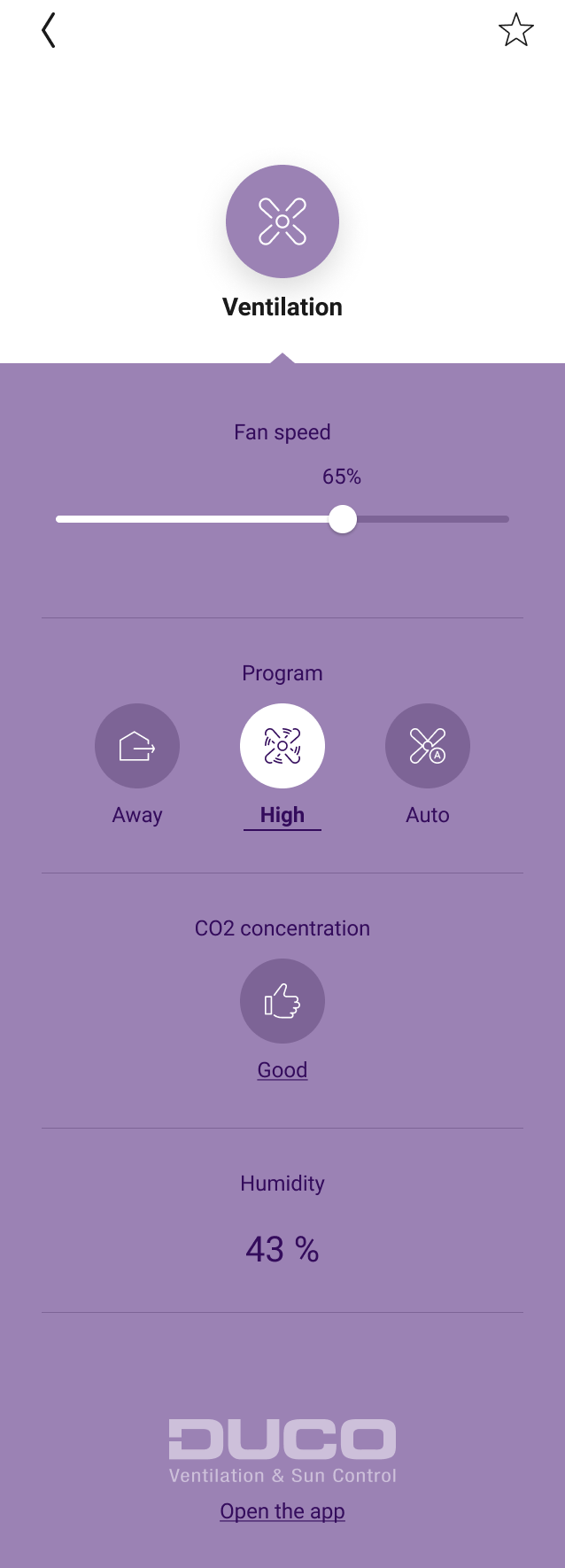
The Renson functions automatically appear in your Niko Home app after you activate the link between both systems. These functions can also be combined in routines/actions to control multiple items simultaneously at a simple press of a button (e.g. turn off all the lights and activate the ventilation boost to refresh the indoor air when pressing the leaving the house button).
-
The available functionality within Niko Home Control depends upon the specific installation features of the Healthbox 3.0.
What do you need?
|
|
In short |
Extra information |
|---|---|---|
|
General |
|
A cabled connection is the preferred solution. |

|
Your Niko Home Control installation meets the following requirements:
|
If you have not registered your Niko Home Control installation, go to Register your installation. |
|
Your Renson system meets the following requirements:
|
In one Niko Home Control installation you can add multiple Healthbox 3.0 or one Flux+ unit. You cannot combine Healthbox 3.0 and Flux+ in the same Niko Home Control installation. |
How do you activate the link between your Niko Home Control and your Renson system?
If you only want to control your partner system with the Niko Home app, a touchscreen or a Digital Black activating the connected service in the Niko Home Control programming software suffices.
-
Check if you have everything you need (see above).
-
Activate the Renson connected service in the Dashboard menu. Doing this, you already can control your Renson system via the Niko Home app and a touchscreen. To control the Renson functions on your Digital black, select the Renson controls for your Digital black in the Niko Home app or configure the Digital black in the Niko Home Control programming software.
If you want to use your Renson system as a part of your configuration (use the system in routines and/or conditions), follow the additional steps below. -
Add the devices generic ventilation Renson.
-
Create the desired routines and/or conditions with the Renson device(s).
-
Address the Renson devices.
-
Upload the configuration file to your installation.
How do you deactivate the link between your Niko Home Control and your Renson system?
-
Deactivate the Renson connected service in the Dashboard menu.
If you used your Renson system as a part of your configuration (used the system in routines and/or conditions), follow the additional steps below. -
Remove the generic ventilation Renson device(s) from the floor plan.
-
Upload the configuration file to your installation.
After deactivating the link, the following happens:
-
The Renson functions disappear from your Niko Home app and your Digital black.
-
When used in Niko Home Control routines, the Renson functions will not be executed anymore.