
What can you do with Niko Home Control?
By using Niko Home Control, you can do the following:
-
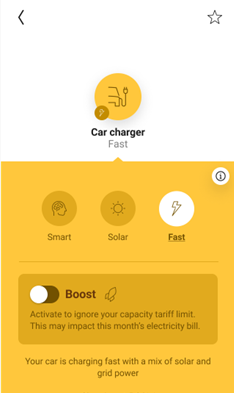
charge your car as efficiently as possible in one of the following modes:
-
Solar mode
-
Normal mode
-
Smart mode
-
Boost mode
-
-
pause or stop the charging of your car
When charging your car using Niko Home Control, the following features are supported:
-
Load balancing: i.e. the car's charging power is adapted automatically as a fuse overload protection mechanism
-
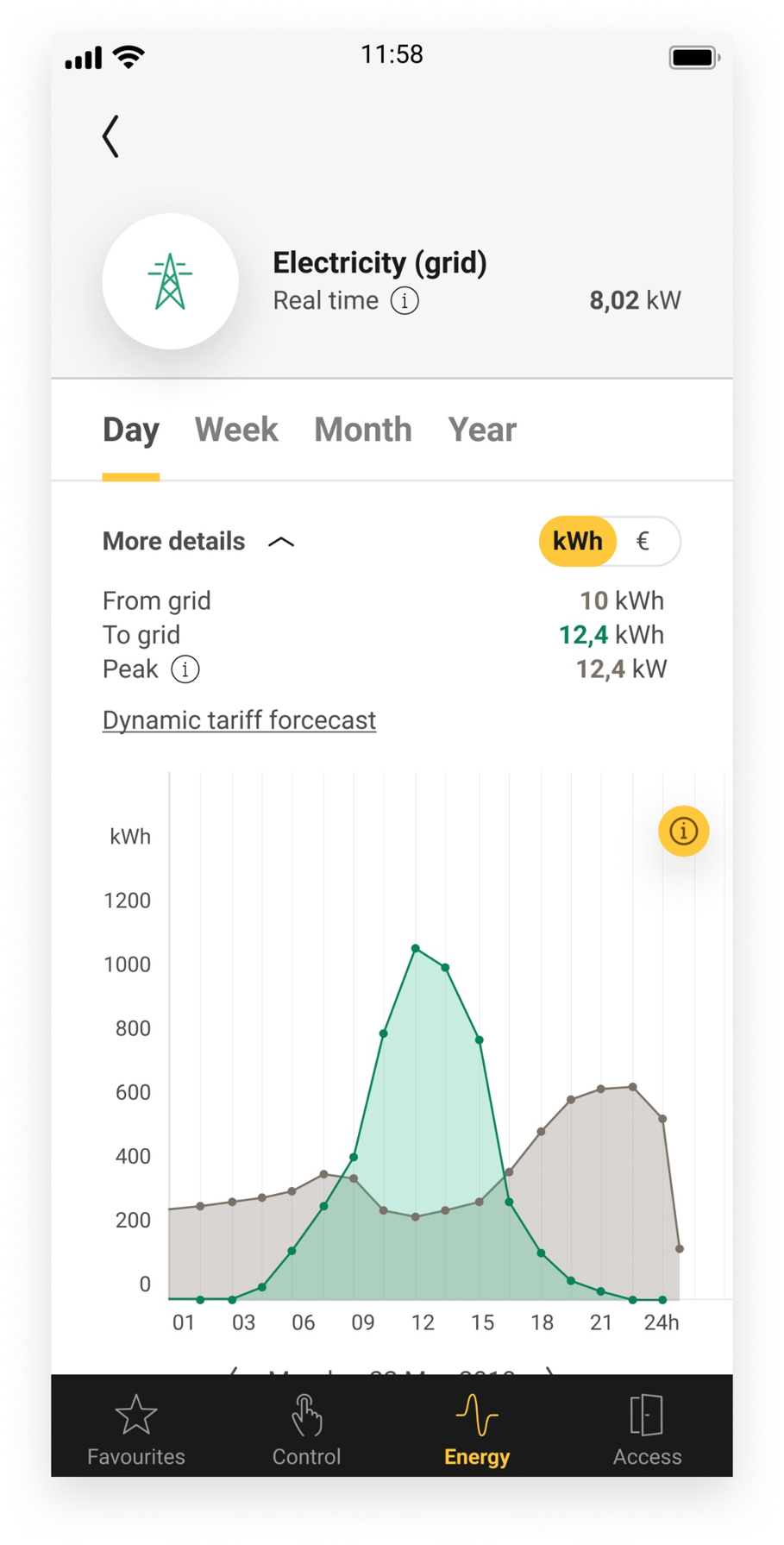
Control your peak consumption via the Niko Home app. See Energy management of car chargers
-
Control max. 4 electric vehicle charging sockets/connections in one Niko Home Control installation. These 4 sockets can be a combination of multiple brands supported by Niko Home Control
What do you need?
|
|
In short |
Extra information |
|---|---|---|
|
General |
|
|

|
Your Niko Home Control installation meets the following requirements:
|
|

|
|
|
How do you activate the link between your Niko Home Control and your Smappee EV charging station?
-
Check if you have everything you need (see above).
-
Activate the Smappee connected service in the Dashboard menu. Doing this, you already can control your Smappee system via the Niko Home app and a touchscreen. To control the Smappee functions on your Digital black, select the Smappee controls for your Digital black in the Niko Home app or configure the Digital black in the Niko Home Control programming software. See Energy management of car chargers.
-
Add a device generic car charger Smappee to the floor plan.
-
(optional) Create the desired routines and/or conditions with the device. You cannot add the generic car charger Smappee to the routines Solar mode and Peak mode.
-
Address the generic car charger Smappee.
-
Upload the configuration file to your installation.
How do you deactivate the link between your Niko Home Control and your Smappee EV charging station?
-
Deactivate the Smappee connected service in the Dashboard menu.
If you used your Smappee system as a part of your configuration (used the system in routines and/or conditions), follow the additional steps below. -
Remove the generic car charger Smappee from the floor plan.
-
Upload the configuration file to your installation.
After deactivating the link, the following happens:
-
The Smappee functions disappear from your Niko Home app and your Digital black.
-
When used in Niko Home Control routines, the Smappee functions will not be executed anymore.