
Product information
This online manual is applicable to the following product(s):
This link takes you to the product page. There, you will find detailed specifications, certificates of CE-marking, etc.
-
550-31303-201 | Sense3, alu signal white coated
-
550-31303-211 | Sense3, alu black brushed
-
550-31303-221 | Sense3, alu natural grey brushed
-
550-31303-241 | Sense3, alu age gold brushed
-
550-39001 | Plaster frame, EU flush-mounting box, 12.5 mm
-
550-39002 | Plaster frame, EU flush-mounting box, 9.5 mm
Description
MOTIV Sense3 is a refined keypad with highly flexible functionality. It has premium metal finishings and a minimalist black top display. It is an elegant addition to the interior design.
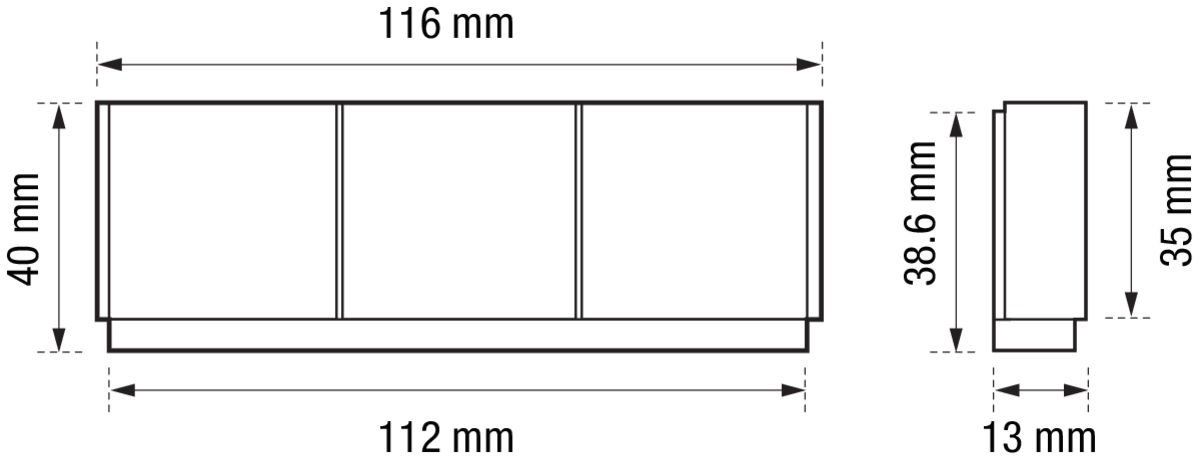
Dimensions
Operation
Interaction
The keypad provides several options for proactive but subtle interaction, based on radar detection. From a distance, the customisable LEDs can light up to welcome you. When nearby, the top display is activated. To ensure ease of use, the top display indicates:
-
icon
-
action short name
-
status
Control
Sense3 has three touch-sensitive keys. There are two methods of interacting with these buttons:
-
Short and long press
-
Slide
The actual behaviour can be programmed.
Example: short and long press for a dimming channel
|
Button |
Behaviour |
|---|---|
|
Short press |
Toggles the dimmed light device ON or OFF. Depending on the memory mode of the dimmer channel, the ON state amounts to 100% of the light output or equals the previous dimming value. |
|
Long press |
Starts the dim-up or dim-down cycle of a dimmer channel, depending on the previous direction. |
|
Release |
Stops the dim-up or dim-down cycle at a certain intermediate dimming percentage. |
Example 2: short and long press behaviour for a motor channel
|
Button |
Behaviour |
|---|---|
|
Short press |
Switches the motor to the following states respectively: run-up – stop – run-down - stop. |
|
Long press |
Starts the run-up or run-down cycle of a motor channel, depending on the previous running direction before the last stop. |
|
Release |
Stops the run-up or run-down cycle at a certain intermediate percentage. |
Slide behaviour
When you slide left or right on the keypad, you can scroll through pages with more actions or routines. Each page contains the programming of three keys. You can program up to 3 pages.
Supported features
All Niko Home Control actions and routines are supported, including lighting, window coverings, HVAC, audio and more.
Thermostat user interface
Thanks to its integrated temperature and humidity sensor, Sense3 also supports multi-zone climate and ventilation control, increasing your energy efficiency and comfort.
When the temperature sensor controls a heating/cooling zone, you can view and control its set points or programs in the Niko Home app, on the Digital black or the touchscreen.
For each zone, you can change the default values of these set points and programs in the Niko Home app or in the Niko Home Control programming software.
Wiring
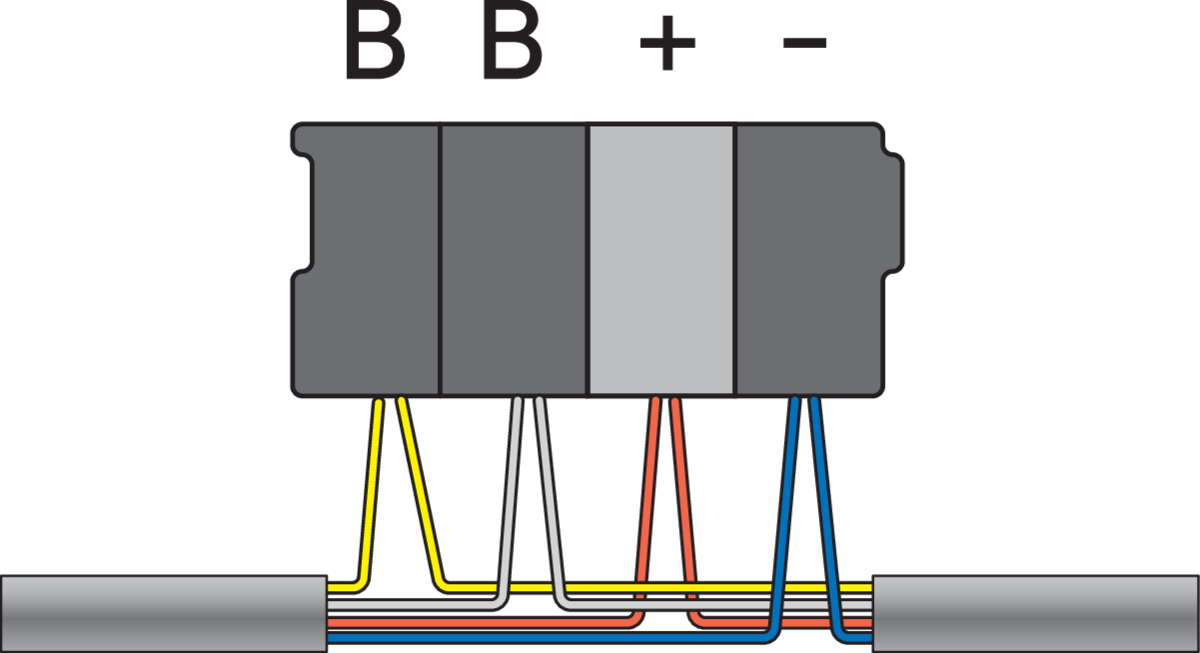
Sense3 is equipped with four connectors to enable bus communication and separate 24 V power supply. Each connector has four plug-in terminals to enable daisy chaining. Below is the wiring diagram:
Placement
Button placement
When installing multiple keypads next to each other, make sure they are spaced at least 1.5 cm:

Installation when using the temperature or humidity sensors
-
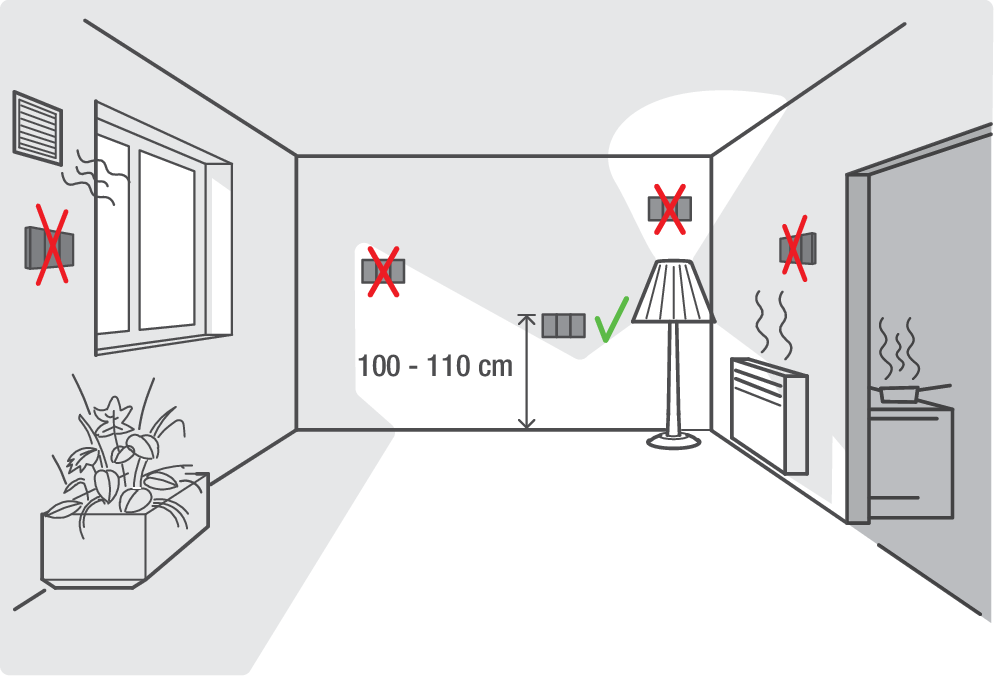
To enable heating/cooling zone control, make sure the room temperature can be measured precisely by eliminating as many factors as possible that may inhibit the thermostat’s ability to perform accurate temperature control.
-
When used as a thermostat, DO NOT mount the keypad:
-
in direct sunlight
-
on an exterior wall
-
behind a curtain
-
within the immediate vicinity of a heat-generating source (heater, radiator, etc.) or electrical equipment that may radiate heat (TV, computer, etc.)
-
-
We recommend installing the keypad at a height between 110 and 116 cm.
-
Do not allow air to circulate behind the keypad. If needed, use an airtight wall-mounting box or fill in any gaps in the flush-mounting box or bus cable duct using PU foam.
-
Make sure to give the temperature sensor sufficient time to acclimatize, getting to the right operational temperature to measure accurately.
Radar considerations
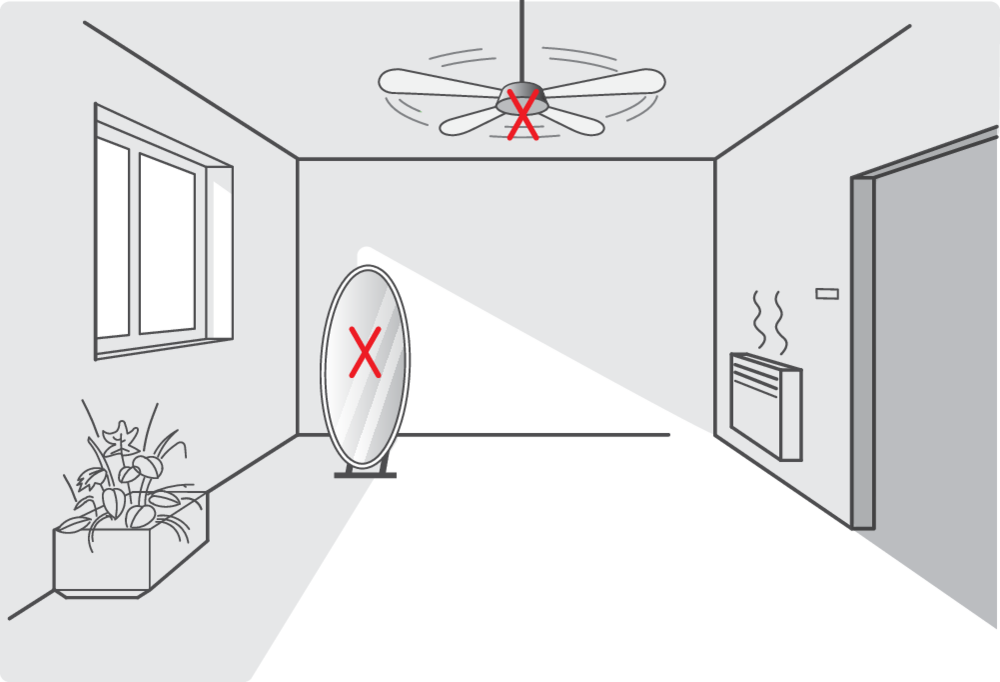
The radar signals behave differently depending on the materials they encounter:

Do not place the keypad in the vicinity of mirrors or metal surfaces or revolving fans as the radar signals will bounce of them and behave unexpectedly:
Installation
Note that the installation of Sense3 requires preparation of the wall using a MOTIV plaster frame (to be ordered separately).
Installation video
Step 1
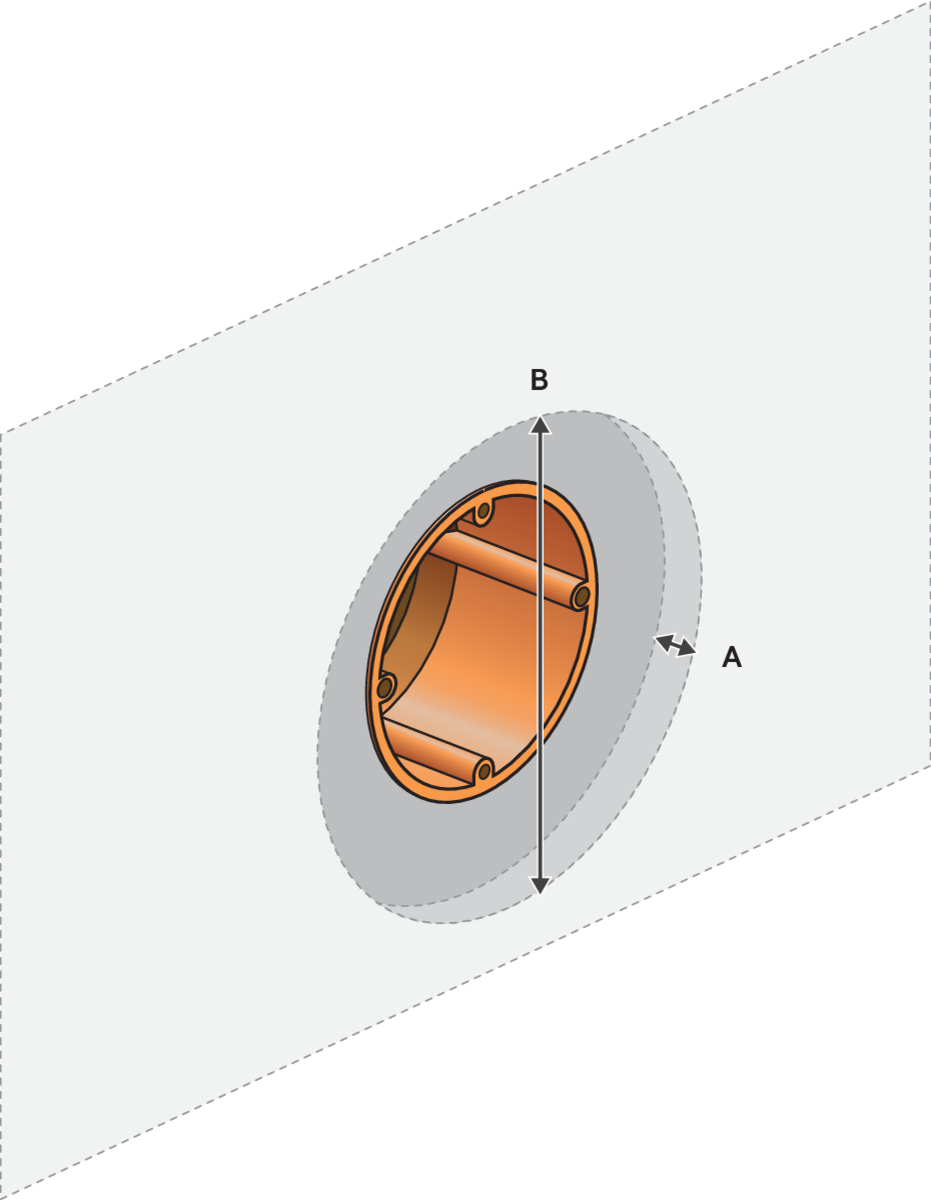
Install the flush-mounting box recessed into the wall. The recess must be the same depth A and size B as the selected plaster frame.
The purpose of levelling out the plaster frame with the final finishing of the wall is to avoid a gap between the keypad and the finished wall.
For brick walls, take into account the thickness of the plaster that will be applied. The protective cap may not extend beyond the plastered surface.
Step 2
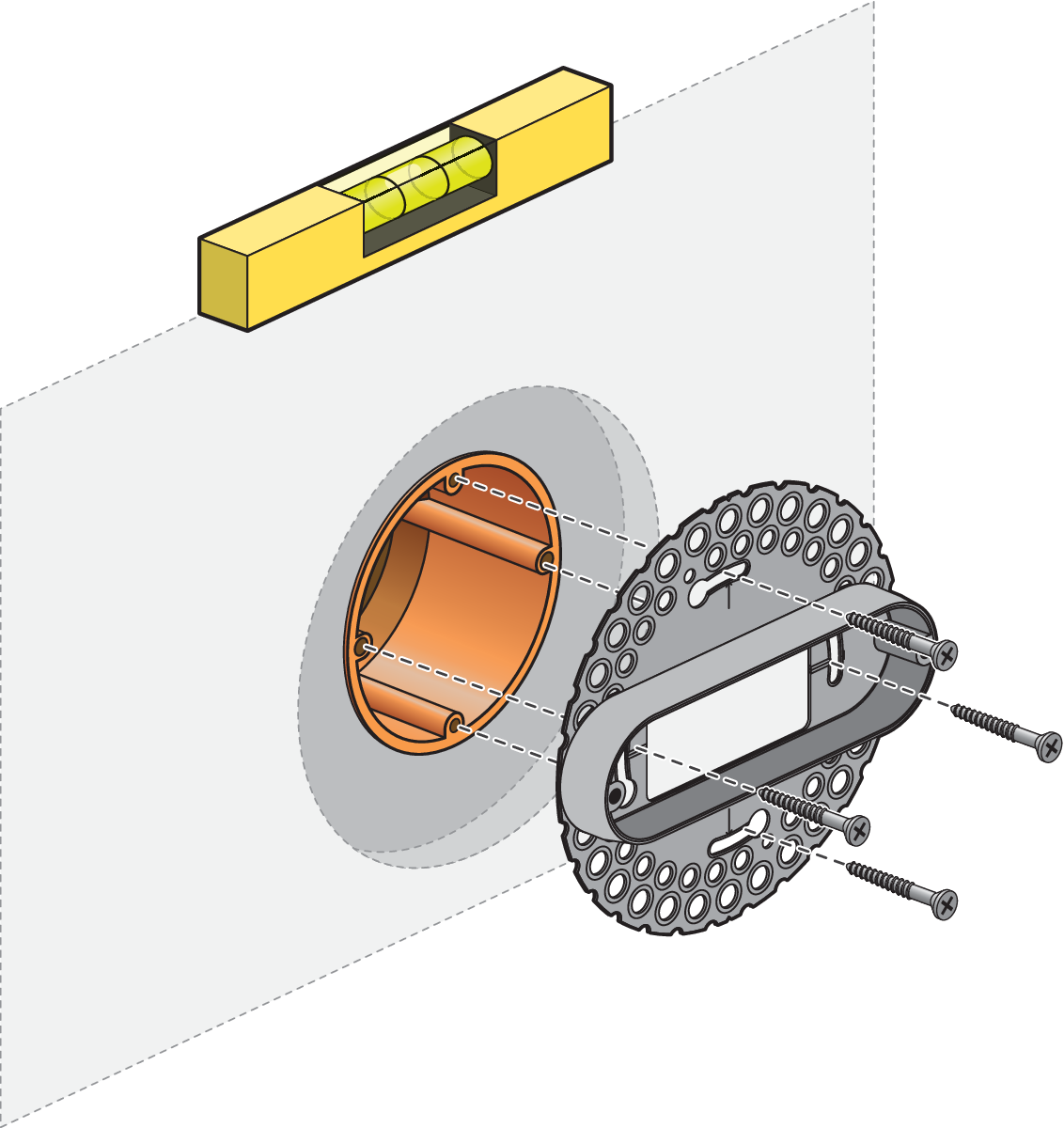
Mount the plaster frame to the wall.
Step 3
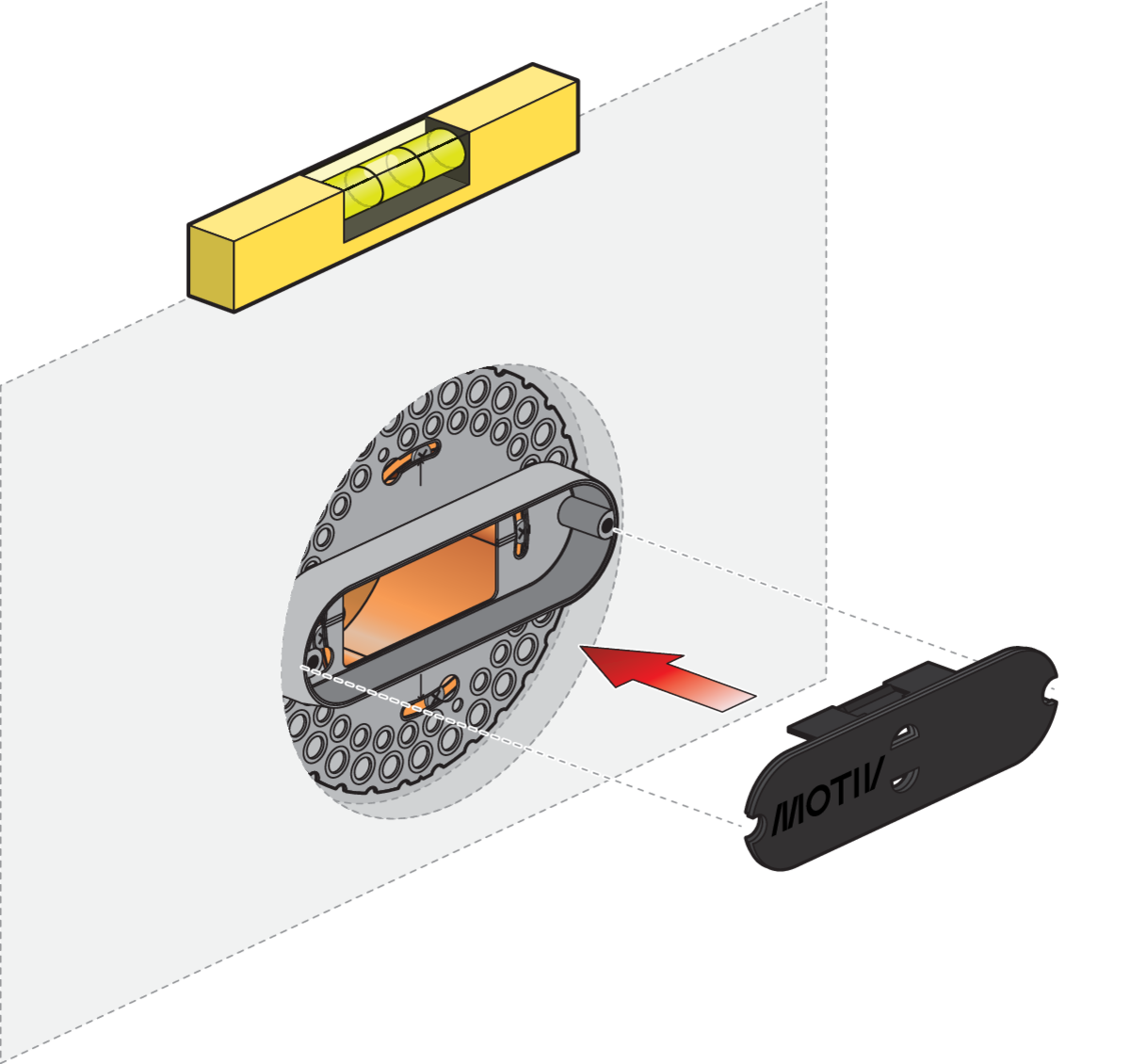
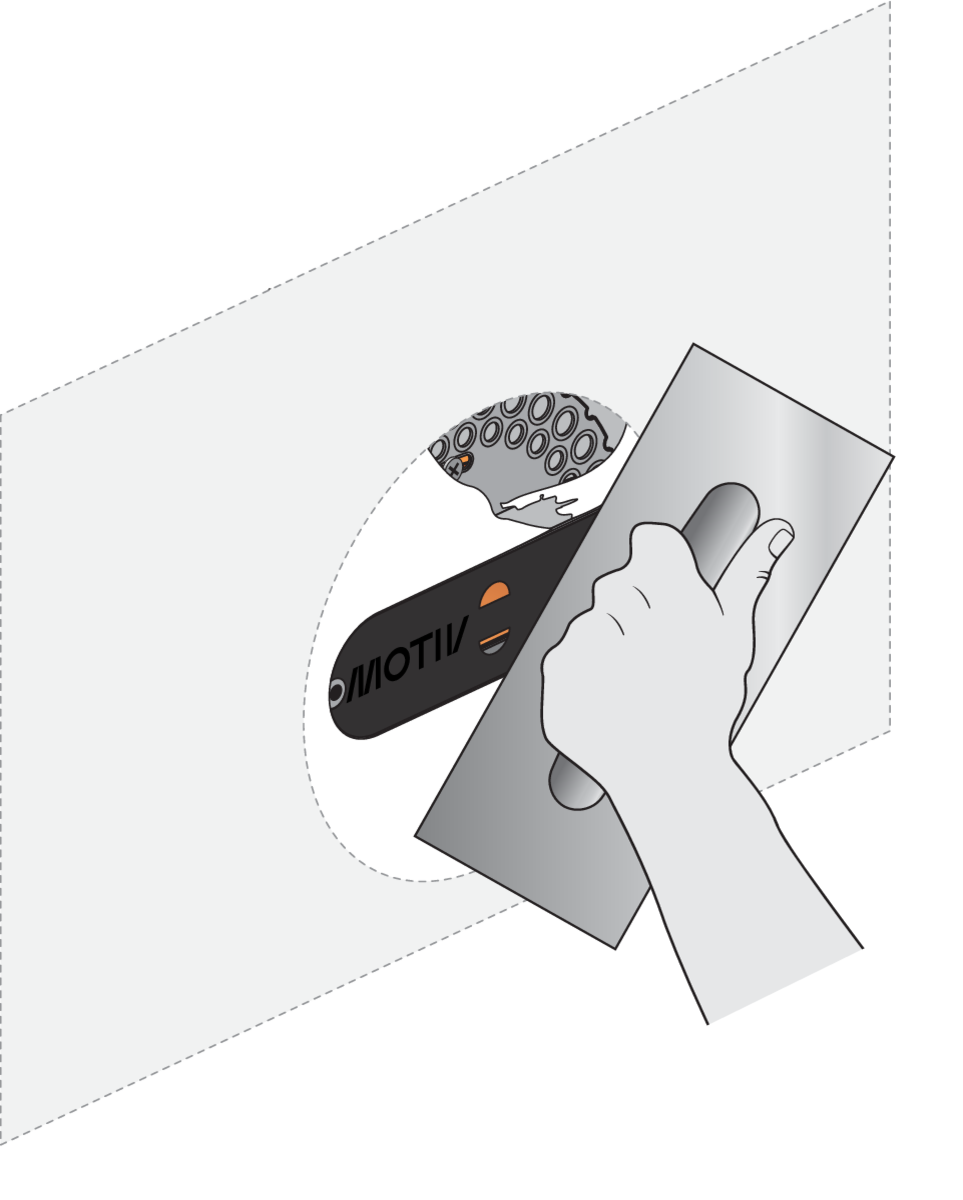
Place the protective cap on the plaster frame and apply plaster.
Step 4:
Remove the protective cap using pliers, before painting the wall.
Tip: Cut the edges with a knife before removing the protective cap to avoid damaging the plaster when removing the cap.
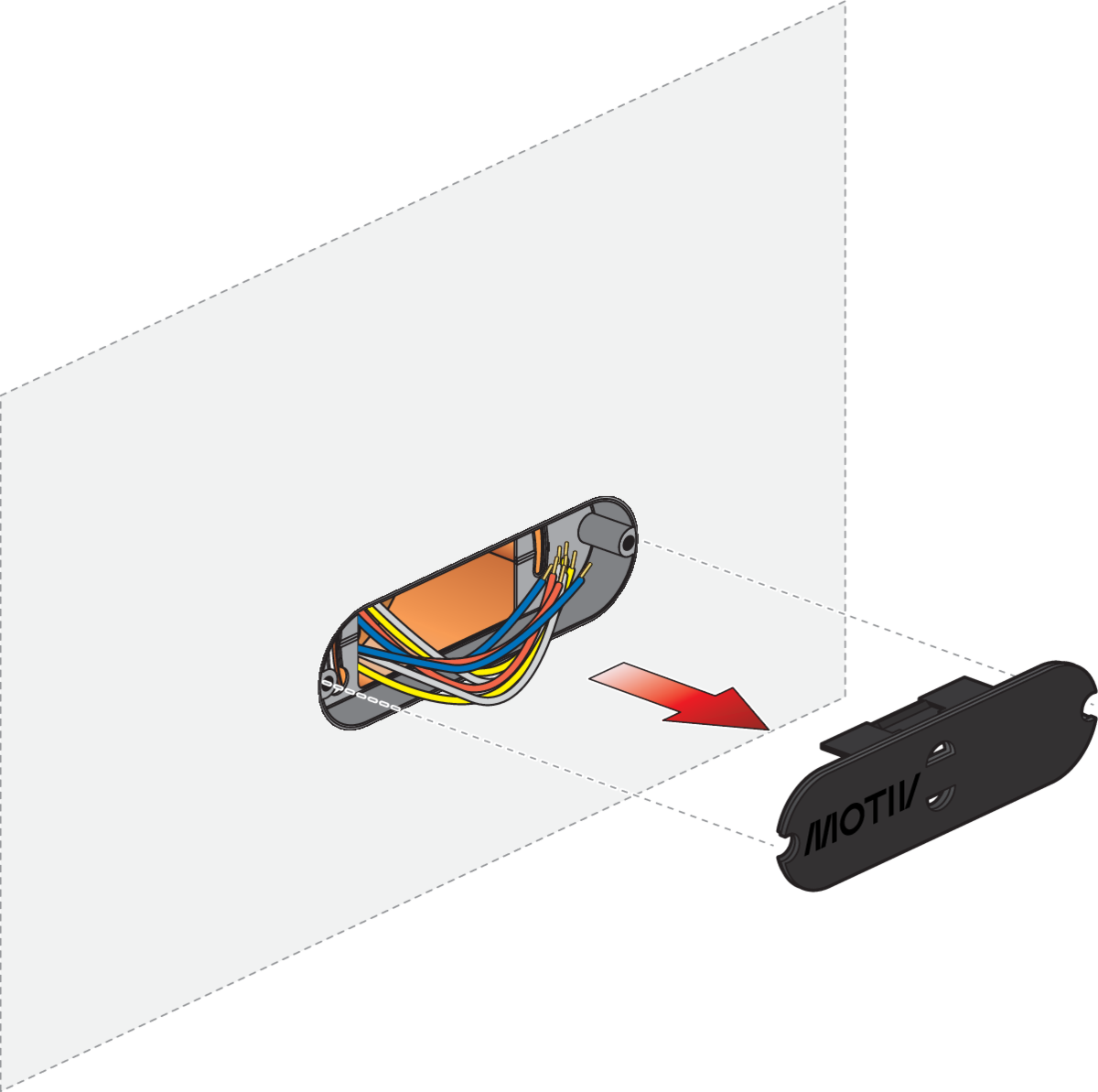
Step 5
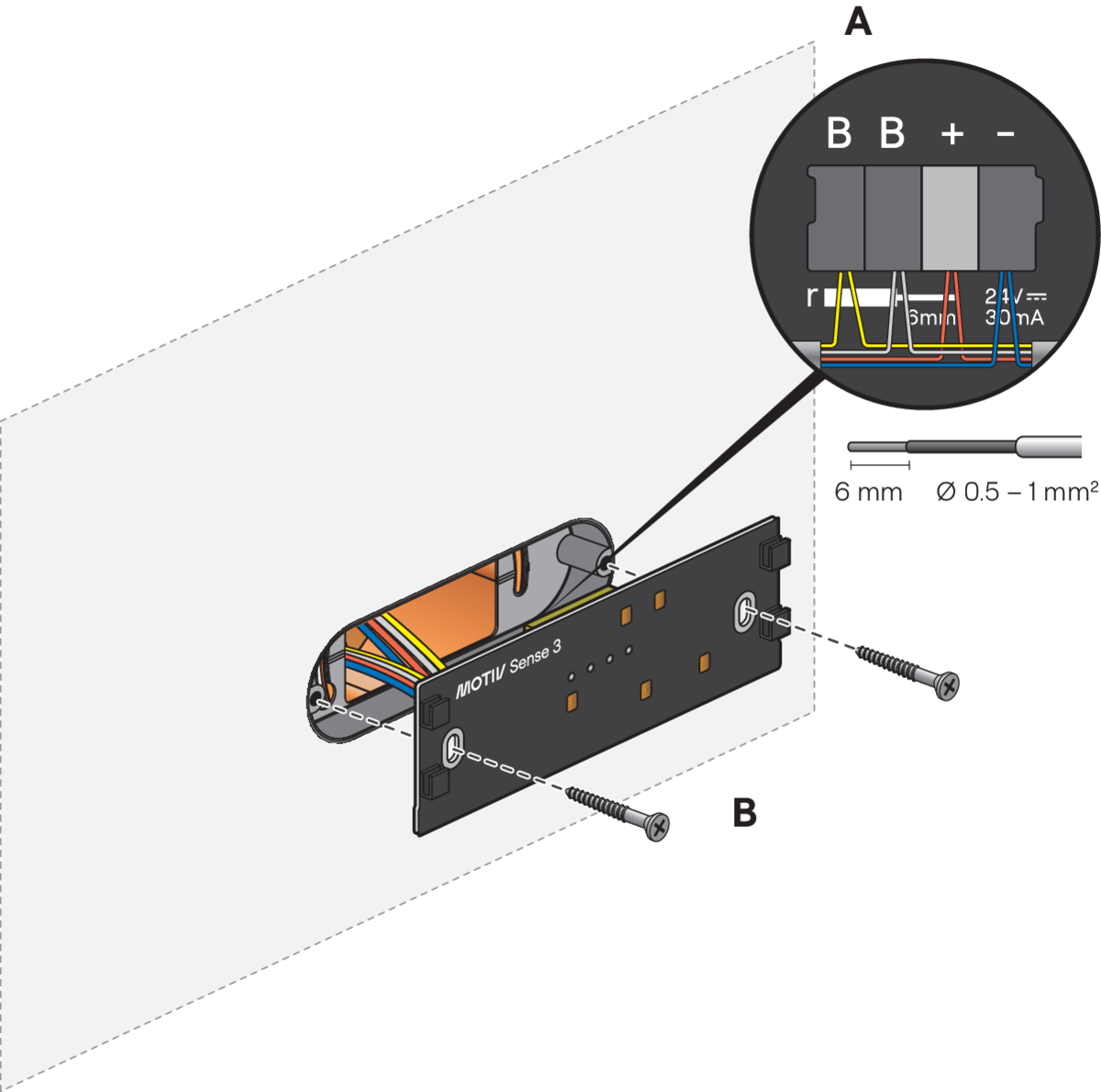
A.
Connect the wires according to the wiring diagram. The connectors can be detached from the printed circuit board to allow easy wiring.
B.
Mount the printed circuit board to the wall. The terminal that is marked with “B” acts as the Niko Home Control bus wiring interface (non-polarized, free topology).
Step 6
A.
Remove the protective film from the printed circuit board.
B.
Click the keypad onto the printed circuit board.
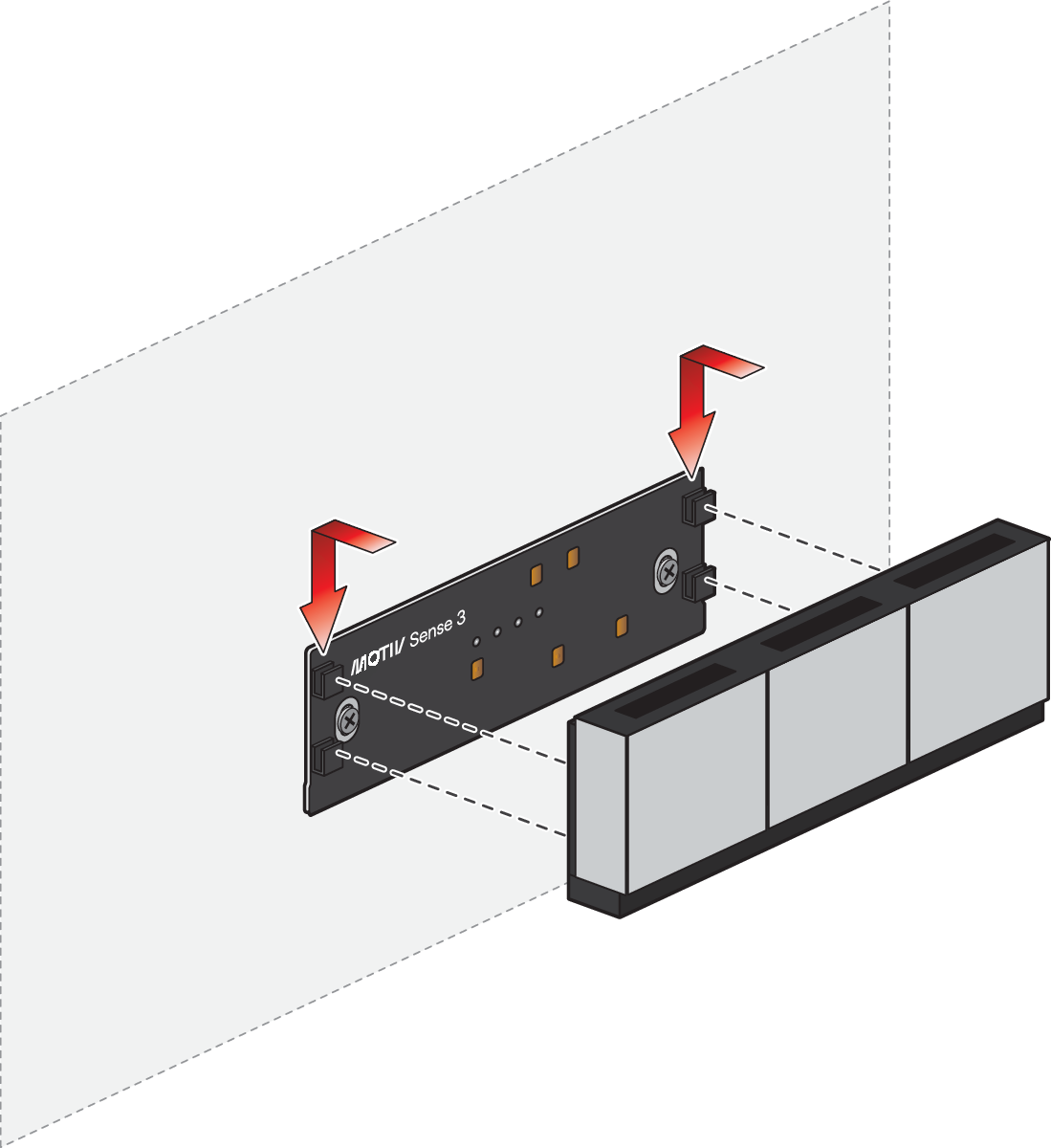
Handle the keypad carefully during installation. Avoid pressing hard on the top display, as excessive force can damage it.
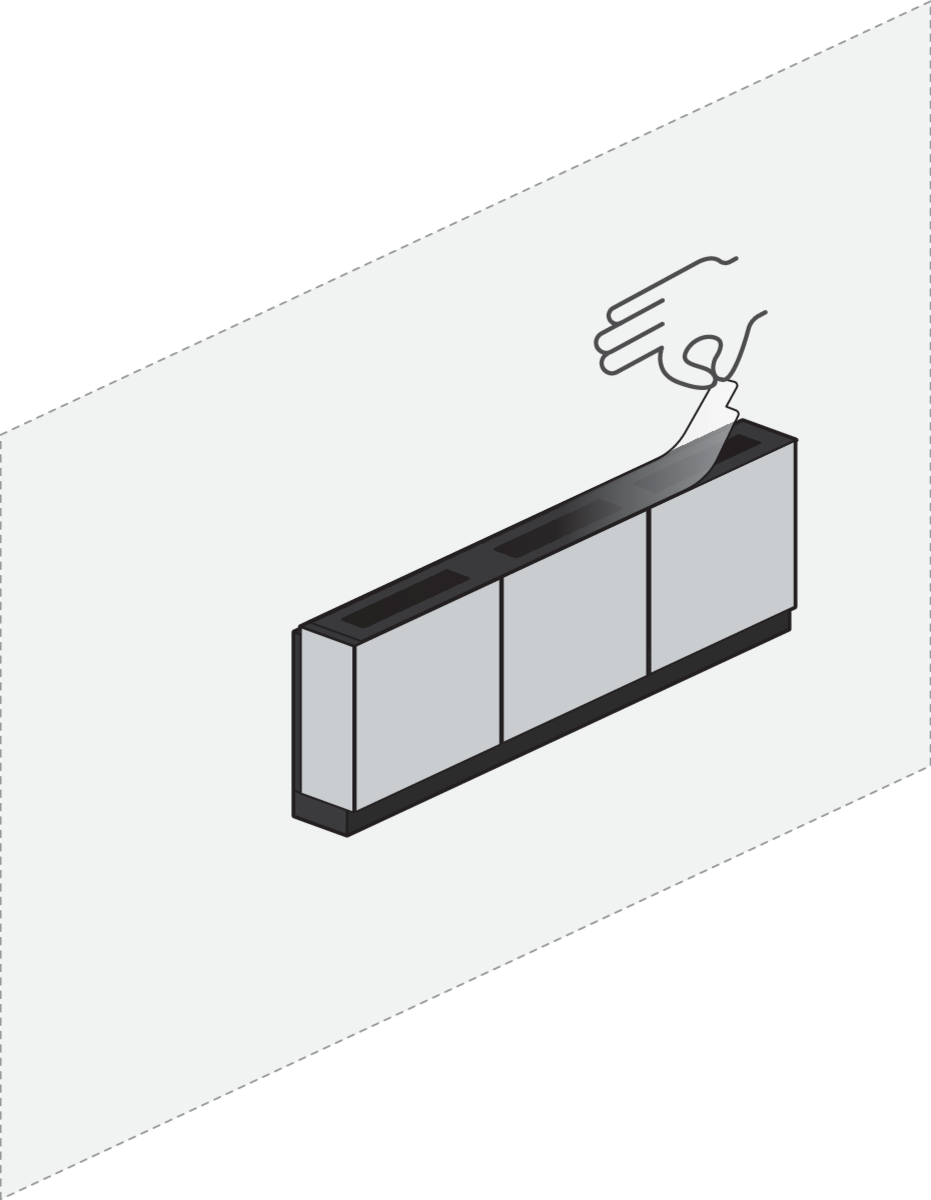
C.
Remove the protective film from the top display.
Programming
Button function
Set the button function using the Niko Home Control programming software (version 2.26.4 or newer). Proceed as follows:
-
Add a device - refer to https://guide.niko.eu/en/smnhc2/lv/creating-a-control-or-a-device
-
Set the parameters - refer to https://guide.niko.eu/en/smnhc2/lv/Sense3
-
Add basic actions and routines.
-
Address the device - refer to https://guide.niko.eu/en/smnhc2/lv/addressing-controls-and-devices and https://guide.niko.eu/en/smnhc2/lv/addressing-methods-for-controls-and-devices
Proximity behaviour
The keypad can be programmed to react to a user’s proximity based on radar detection. There are four possible settings:
-
Always Active
-
Always Inactive
-
Close (100 cm)
-
At a distance (250cm)
The software allows you to set this behaviour.
Temperature and humidity sensor
The temperature sensor can be programmed as an input for multi-zone control (heating/cooling and ventilation) and allows you to increase your energy efficiency while maintaining overall comfort.
Furthermore, temperature values can be used as an input in a condition. Humidity values can also be used. Just add one (or both) value(s) to the IF statement.
You can visualise the temperature/humidity value in the Niko Home app or on the Digital black:
|
Niko Home app |
You can visualise the measured temperature and/or humidity in the ‘Climate’ tab, without a 'climate control' routine.
|
|
Digital black |
You can visualise the measured temperature and/or humidity on the Digital black.
|
Feedback LED behaviour
Configure the feedback LED behaviour for a basic action in the Niko Home Control programming software. For the activated and deactivated state, it can be set to:
-
Different intensities: off, soft, medium or bright
-
Different colours: warm white or any RGB colour
Maintenance
Use a soft dry or slightly damp cloth to clean the keypad. Do not use detergents or other cleaning agents.